How-to
How to manage your profile and settings
Your profile page groups personal preferences, security options, and data import/export tools. Open it via the user icon in the top-right corner of the application.
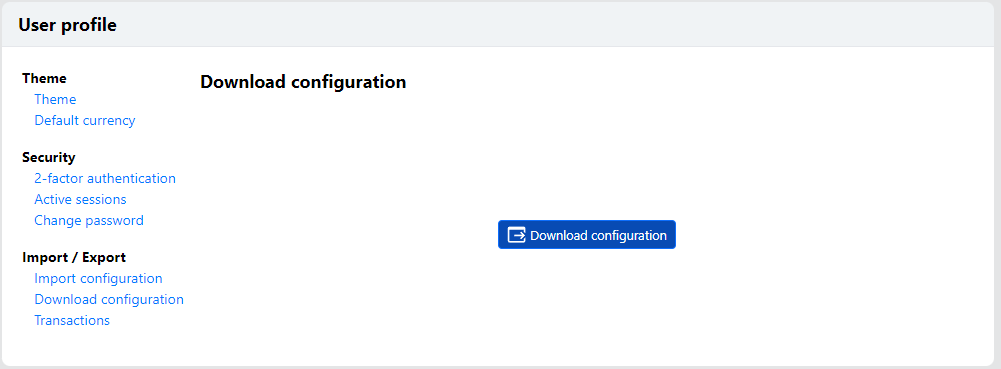
Preferences
Theme, choose the visual theme of the application.Default currency, the currency used in overviews and reports.
Additional currencies can be managed by an administrator under Settings → Currencies, where a currency name, code, and symbol can be registered. Other application-wide settings, such as the number of records per page, are under Settings → Configure.
Security
Two-factor authentication
Two-factor authentication adds a one-time code from an authenticator app to your login.
Enable it under Security → 2-factor authentication and follow the instructions on screen.
It can be disabled again on the same page.
Note
When two-factor authentication is enabled you will be asked for the code after entering your password. OpenID Connect logins do not use this page — your provider manages multi-factor settings.
Active sessions
Under Security → Active sessions you can see the sessions currently logged in to your account,
including when each session started and when it expires.
Change password
Under Security → Change password you can set a new password for your account.
Import and export
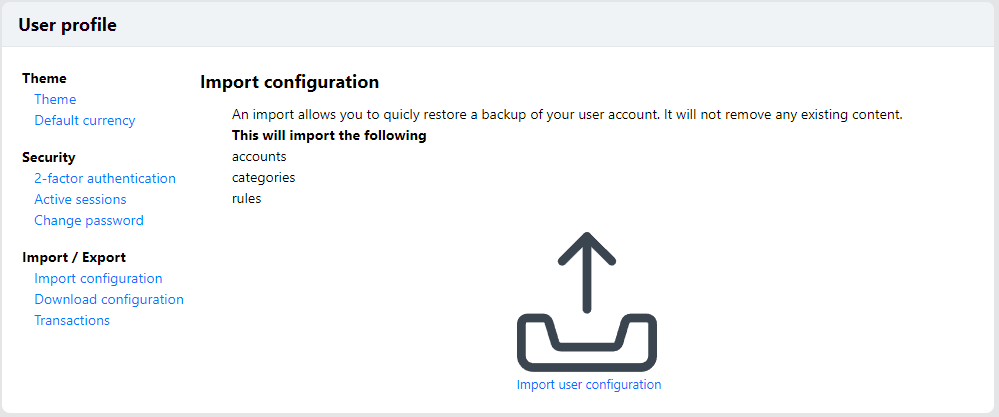
Import configuration, restores a previously downloaded profile export (JSON). The import adds accounts, categories, and rules; it does not remove existing content.Download configuration, exports your profile — including accounts, categories, and rules — to aprofile-export.jsonfile. Use it as a backup or to move your setup to another installation.Transactions, downloads all your transactions as a CSV file.